




Triton ULTRA: VideoInsight Integration Guide
Overview
• Triton ULTRA sensor can detect many sensitive environment condition changes.
like vaping, temperature, etc.
• The integration can show the dashboard live image in the VI client, and can
utilize these detected events as VCA in the rule manager so that any action that
VI supports can be utilized.
like vaping, temperature, etc.
• The integration can show the dashboard live image in the VI client, and can
utilize these detected events as VCA in the rule manager so that any action that
VI supports can be utilized.
System Architecture

Supported Events

Configuration (Device Side)

Notification setting:
• In case of HTTP notification, open the:
• Platform Integration -> HTTP setting tab.
• Enable the HTTP, then set the IP Server’s IP Address with the port number to the “Server”.
• And leave other configurations as default.
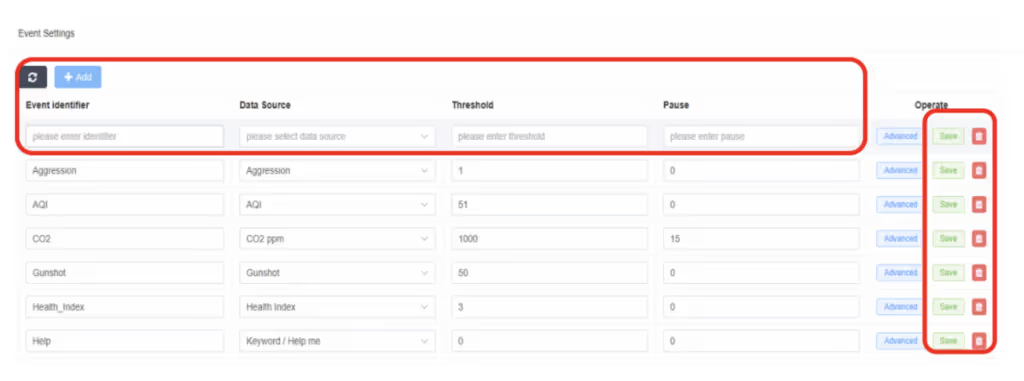
• Open the Events -> Events Settings tab.
• Click the Add button to create an event, then click Save button to save the setting.
• In case of HTTP notification, open the:
• Platform Integration -> HTTP setting tab.
• Enable the HTTP, then set the IP Server’s IP Address with the port number to the “Server”.
• And leave other configurations as default.
• Open the Events -> Events Settings tab.
• Click the Add button to create an event, then click Save button to save the setting.
• Open the Actions -> Action Settings tab.
• Check the HTTP checkbox. And use the Test button for checking the working.
• Check the HTTP checkbox. And use the Test button for checking the working.

Configuration (VI Side)
Sensor Enrollment:

• Triton ULTRA sensor can not be detected automatically. It’s necessary to enroll manually.
• Set Manufacture to “Triton”, Model to “Triton Ultra”.
• Set IP Address, User name, and Password correctly.
• Event Port must be matched to the device side configuration. It’s a listening port in VI IP Server.
• Enable the “Capture VCA Events”
NOTE) To receive the event, the Recording Type MUST be “Always” or “On Motion Only”. During setting as “Off”, any event cannot be received.
Configure Rule Setting:
• Set Manufacture to “Triton”, Model to “Triton Ultra”.
• Set IP Address, User name, and Password correctly.
• Event Port must be matched to the device side configuration. It’s a listening port in VI IP Server.
• Enable the “Capture VCA Events”
NOTE) To receive the event, the Recording Type MUST be “Always” or “On Motion Only”. During setting as “Off”, any event cannot be received.
Configure Rule Setting:

• Create a Rule configuration, and open the Video Analytics Event as Rule Trigger. Then, select the camera to “Triton Ultra” device name and Event that you want to utilize.
• Set Action that you want to happen when configured event happens.
• Set Action that you want to happen when configured event happens.

